You may already know that Datarails is the world’s favorite FP&A solution for Excel users, automating data consolidation, reporting, and planning. But before you go ahead and book your Datarails demo, here’s a window into what people ask our sales engineers about how it all works on a day-to-day basis.
These are the real questions finance leaders ask when they’re getting hands-on, diving into the details that will help them make a confident decision.
If you’ve read this article, you understand what prospects ask about what we do and how we do it. Now let’s drill down into the features and functions that make the solution tick.
1. How easy is it to drill from dashboards, reports, or budget screens to transaction-level data?
Super easy. You literally just click on any number in a dashboard or report, and you’re looking at the underlying transactional data from your source system (like Oracle Fusion, NetSuite, or whatever you’re using).
A transactional window pops up showing you all the relevant details: which vendors, which accounts, the dates, amounts, everything you’d want to verify. This works the same way across dashboards, reports, and budget interfaces, so you’re never more than one click away from the source of truth.
It’s one of the features our customers mention most. No more hunting through source systems or asking someone else to pull the data for you.

2. Can the transaction detail view show fields like descriptions?
Absolutely. The transactional view is fully customizable. Want to see description fields? Memo columns? You can add whatever text fields or data points you need.
You’re in control of which fields display, so you can tailor the detail level to match exactly what you need to review or audit. Some people want minimal info, others want everything. Either way works.
3. How do grouping options and customization work?
You have a lot of flexibility here. You can group transactional data by any field you want: GL account, vendor, department, cost center, whatever makes sense for your analysis.
You can also switch between different views on the fly. Want to see it as a pivot table? Done. Need a different grouping structure? Just change it.
We also support building specific “drilldown paths” that automatically group or summarize transactions according to criteria you define. So if your team always analyzes spend by vendor within department, you can set that up once and it’s ready to go every time.
4. Which interface is faster for analysis: Excel or the web?
Excel wins, especially when you’re dealing with large datasets. Since Excel works locally with cached data, it’s just faster for heavy lifting.
The web interface is great for viewing financial reports, checking dashboards, and doing light analysis. But when you need to do deeper analytical work (building complex models, running scenarios, manipulating large data sets), Excel is where you want to be.
Think of the web as your “consumption layer” and Excel as your “power user layer.” Both have their place.

5. How do I upload Excel reports to the web or create reports directly online?
You can go either direction here.
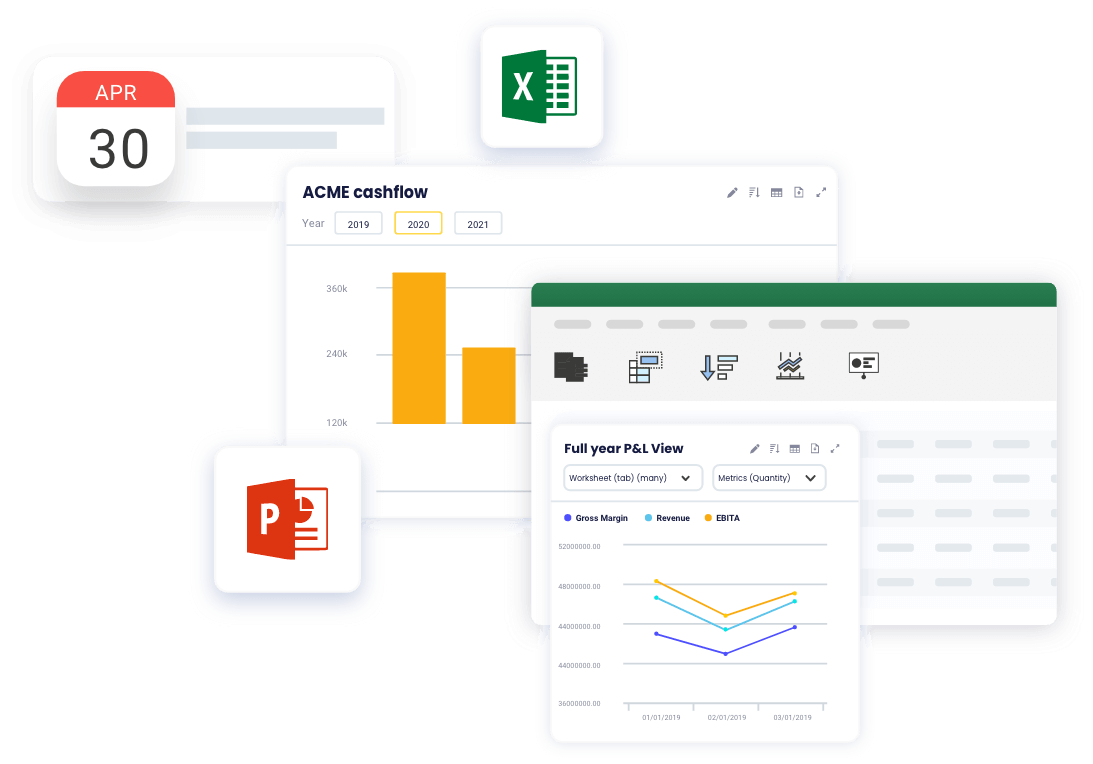
Build in Excel: Create your report using the Datarails Excel add-in, then publish it straight to the web dashboard. Your Excel work becomes a live web report.
Create in the web report builder: Spin it up, then save it and download to Excel if you want to work on it there. Or just publish it directly to dashboards without ever opening Excel.
Everything stays synced between the two environments, so you’re not locked into one workflow.
6. Can I compare budget and forecast versions, and lock them to prevent changes?
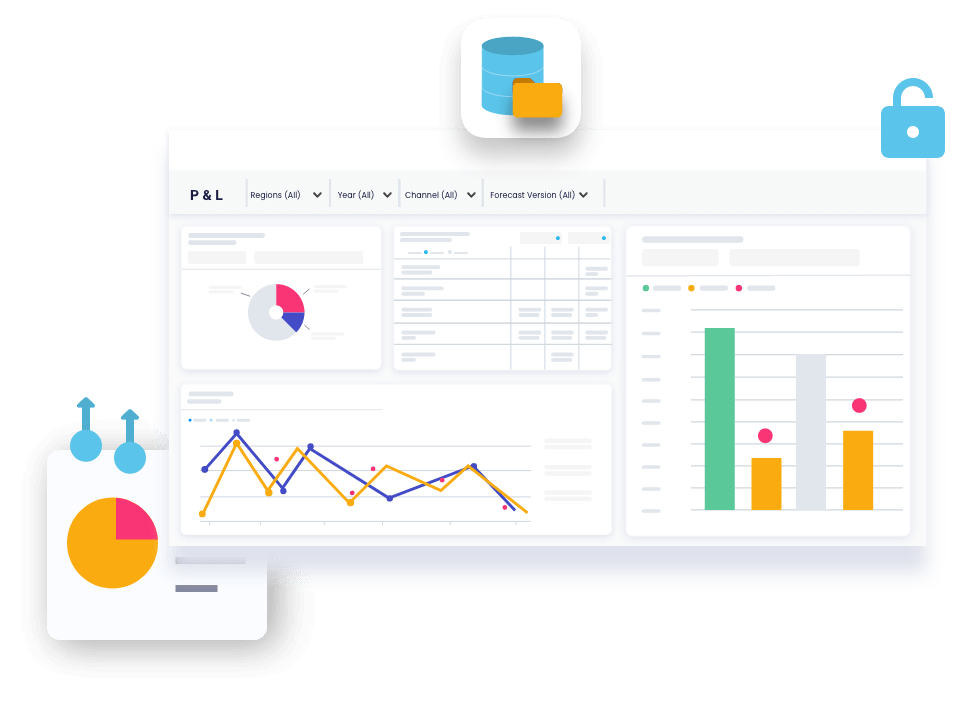
Yes on both counts. You can add multiple scenarios (Actual, Budget, Forecast 1, Forecast 2, whatever you need) and view them side by side for easy comparison.
For locking: We have role-based access control and version locking capabilities. As an admin, you can lock specific versions for specific months to prevent anyone from accidentally (or intentionally) changing them.
If someone really needs to unlock a version, they have to explicitly confirm it through a pop-up dialogue. No accidental edits destroying your board-approved budget.
7. Is simultaneous editing possible?
Yes, when you’re using Excel Online. Multiple users can view and edit the same file together in real time.
If people are working on offline copies of the Excel file, they’ll need to submit their changes through our routing and approval workflow to get them incorporated back into the master version.
8. Can I add prior-year actuals and modify formulas?
Adding prior-year actuals is simple. You’re basically just updating parameters in your formulas. For example, if your DRGET formula is pulling 2023 data, you just change “2023” to “2022” and you’re looking at the prior year.
Speaking of formulas: We use Excel-style functions like DRGET, DRYEARTODATE, and DRORDERTODATE. You can apply a formula to one cell or propagate it across a whole range, whatever you need.
The best part? All your formulas live in Excel itself, not buried in some database. So maintaining and troubleshooting your models is as fast as it is intuitive.
9. How are annual vendor costs derived, particularly with prepaid expenses and accounting basis?
The annual cost values you see represent realized expenses: basically what you actually paid the vendor during that period.
Now, if you have prepaid expenses that amortize over time, those won’t automatically show up in the annual totals unless you’ve specifically connected those amortization schedules into Datarails.
We can absolutely support both cash-basis and accrual-basis reporting. You can set these up as separate scenarios or build them into your integrations, depending on how your organization reports.
10. What can’t be done on the web versus in Excel?
If you’re doing pure reporting (building, viewing, and sharing reports), you can do all of that on the web interface.
But budgeting and forecasting still require Excel. Why? Because that’s where the advanced analytical tools live. Complex pivot tables, sophisticated “if/then” scenario modeling, heavy data manipulation. Excel is just more powerful for those workflows.
So web users can absolutely view reports and visuals, but if they need to build complex models or run deep analyses, they’ll want Excel access.
11. Can I continue building models the way I’m used to?
Completely. That’s the whole point.
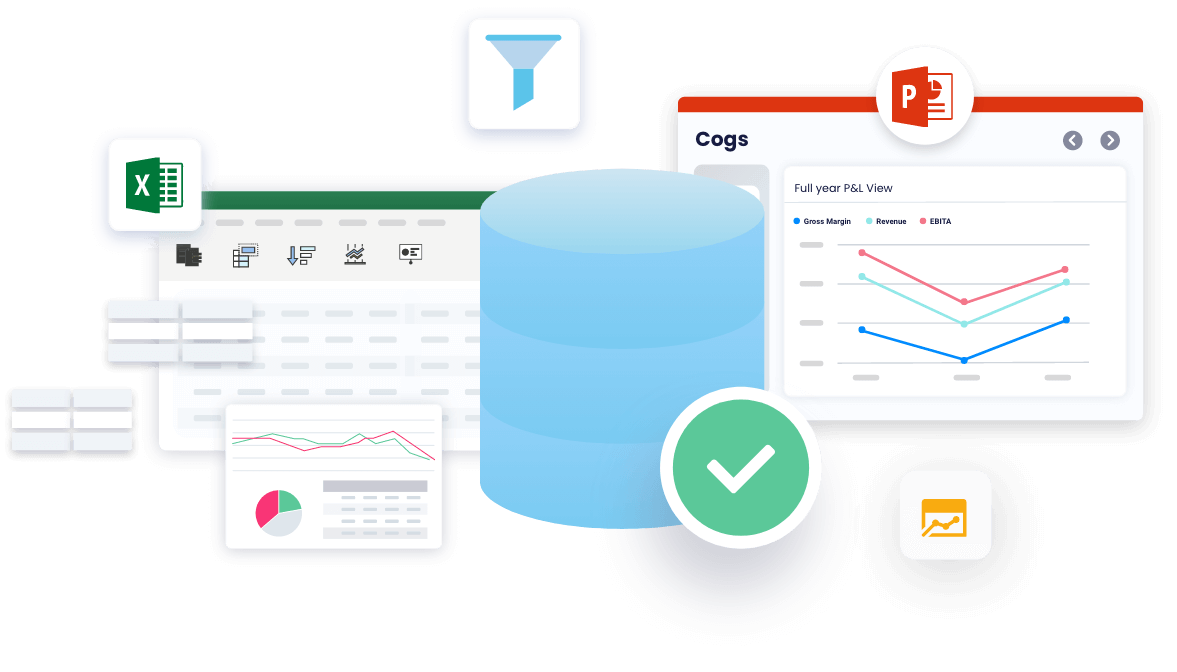
Datarails doesn’t force you to abandon your existing models or learn some proprietary system. You keep working in Excel with Excel formulas. We just supercharge it with live, consolidated data from all your systems and add automation so you’re not copying and pasting all day.
Your institutional, “tribal” knowledge (all those carefully constructed and livingly curated models and templates) stays relevant. You’re just making them better.
Ready to see it in action?
Want to walk through your specific use cases and see how Datarails will handle the workflows that matter to your team? We’re waiting for you. Bring your toughest questions to your Datarails demo.