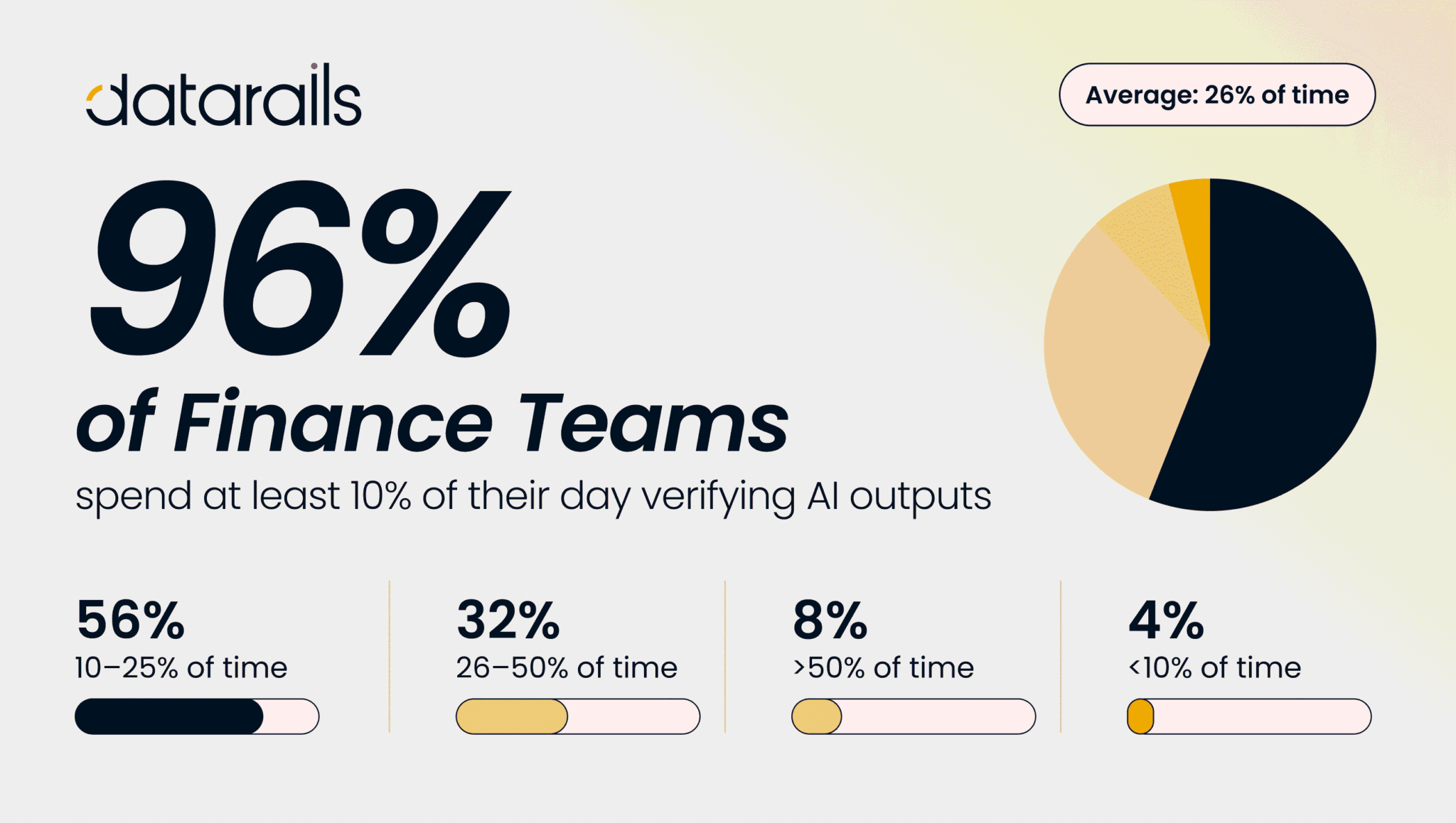
Click for Takeaways
- AI tools for Excel now split into two tiers: general assistants for one-off formula help, and platforms built for recurring financial workflows and templates.
- In this updated list of the best AI tools for Excel, we’ve added Microsoft Copilot for Excel and Claude for Excel.
- No AI tool for Excel can check the data it was handed. Whether the answer is right gets decided before the tool ever opens the file.
- AI adoption in finance has more than tripled since 2023, but most of it is still one-off use rather than a repeatable, governed process.
AI Tools for Excel: What’s Changed in 2026
Ask a room of finance people what “AI tools for Excel” means, and you’ll get two different answers, largely depending on what they spend their day doing.
One person is trying to fix a complicated Excel formula, while another is trying to make sure next month’s close follows the same process as this month’s. Those aren’t the same job, so it makes sense that the best tool for each one isn’t the same either.
General AI assistants like Microsoft Copilot for Excel, Claude for Excel, and ChatGPT answer the first question well. Platforms like Datarails, covered in our roundup of the best AI tools for finance teams, answer the second.
More companies are using AI, but most of that use is still task by task instead of built into recurring workflows.
“AI adoption in finance reached 56% in 2026, up from 17% in 2023, but only 17% of finance teams are using AI in core workflows.”
— CFO Connect, State of AI in Finance 2026 (core-workflow figure via General Atlantic)
This guide splits AI tools for Excel into the two tiers finance teams deal with, which we’ll explain below. You’ll also find answers to an overarching question: which tools build and maintain the workflows and templates a finance team runs every close cycle? And a third question sitting underneath both of those: what data is any of these tools reading when it answers?
What Are the Best Tools for Creating Workflows and Templates for Financial Analysis in Excel?
The best tools are split into two tiers, and the primary difference between them is whether the work persists after you close the chat window.
Tier 1 is made up of AI assistants such as Microsoft Copilot for Excel, Claude for Excel, and ChatGPT. They’re useful for solving spreadsheet problems as they come up, from generating formulas to reviewing models or explaining calculations. Copilot is part of Microsoft 365 Excel, while Claude for Excel is designed for more complex workbook analysis. Once the task is done, however, the work ends there.
Tier 2 is made up of platforms that connect Excel to your source systems and keep recurring reporting running on top of them. FP&A platforms including Cube, Vena, and Planful sit here, alongside Datarails, the leading finance operating system provider. Each connects to your accounting systems, manages shared templates, and updates reports automatically each reporting cycle instead of relying on manual rebuilds.
Need one formula fixed? Tier 1 is faster. Need the same report to build itself every month without anyone re-exporting data? That’s a Tier 2 platform.
Excel AI Assistant vs. Financial Workflow Platforms: A Quick Comparison
Here’s how the two tiers stack up side by side.
| What It’s Built For | Template & Workflow Reuse | Live Data Connection | Best For | |
| General AI Assistants(Copilot, Claude for Excel, ChatGPT) | Answering one question at a time: formulas, explanations, quick analysis | None. No shared template that reruns on a schedule | Manual upload or the open workbook only, no live ERP sync | Analysts who need fast, one-off help inside a workbook |
| Financial Workflow & Template Platforms(Datarails and category peers) | Building and maintaining recurring reports, models, and consolidations | Centralized, version-controlled templates that reuse each cycle automatically | Live connection to ERP, accounting, and other source systems | Finance teams running the same close, budget, or forecast process every month |
Best Excel AI Assistants and AI Formula Generators
These tools work well when you need an answer now. But none keep a governed template running across your team without a rebuild each time you open them.
For a closer look at how each fits into a broader stack, see our guide to data analysis tools in Excel.
Microsoft Copilot: Embedded Excel AI Assistant
Microsoft Copilot is embedded directly in Microsoft 365 for Copilot-licensed users. It writes formulas, builds pivot tables, and generates charts from plain-English instructions inside the workbook you’re already using. Agent Mode goes further, taking multi-step actions across a workbook while keeping a person in the loop.
Since May 2026, Claude has been the default Copilot model in Excel and PowerPoint for tenants in commercial-cloud regions. EU, EFTA, and UK tenants are off by default until an admin opts in, and Agent Mode itself still defaults to Auto model selection. Either way, the stronger spreadsheet reasoning makes Copilot a solid option for teams already on Microsoft 365. Its focus remains on the workbook in front of you rather than on the systems your numbers came from.
Claude for Excel: Anthropic’s AI Excel Add-in
You’ll frequently see Claude for Excel recommended for finance professionals who spend their day inside spreadsheets. Anthropic’s official add-in works directly within Excel, reading and updating open workbooks while showing cell-level references behind its answers.
It handles complicated formulas, multi-tab financial models, and scenario analysis with little trouble, making it useful when you’re reviewing someone else’s work or checking a model before it goes to leadership. Like other AI assistants, though, what it reads is the workbook you point it at. It has no view of how those numbers were defined, or whether they match what the rest of the business is working from.
ChatGPT and Gemini for Excel
ChatGPT remains the broadest cross-platform option, and CFO Connect’s 2026 survey still finds it the most-used AI tool among finance teams overall. Paste in a formula or upload a CSV, and it’ll write, explain, or debug it. For how the same prompts behave on each platform, see our comparison of Excel vs Google Sheets.
For a full walkthrough, see our guide to ChatGPT for Excel formulas.
Google’s Gemini offers a similar spreadsheet integration inside Google Workspace. Both are worth keeping open in a browser tab. That said, neither connects to your accounting system on its own, so whatever you get back is only as current as the file or the paste you gave it.
Numerous.ai
Numerous.ai brings ChatGPT-style prompts into spreadsheet cells with an =AI function, working in both Excel and Google Sheets. It doesn’t require an API key and handles content generation and automated data sorting. It’s not marketed to finance teams specifically, but it’s a fast way to test AI prompts directly inside a sheet.
Formulas HQ
Although it’s known primarily as a formula generator, Formulas HQ has expanded its features to offer much more.
Along with its AI-powered Excel formula generator, users can also trust Formulas for help with generating formulas for:
- Python
- Google Sheets
- Regular Expressions
It also supports multiple languages and integrates with ChatGPT, where finance teams can choose from numerous prompts or create their own.
Formulas HQ earns its spot as one of the best AI tools for Excel because of its ability to simplify formula generation while supporting multiple platforms and programming languages.
This tool offers a flexible and practical solution for finance teams juggling a range of spreadsheet needs.
Excelly-AI
Excelly-AI supports Excel, VBA, and Google Sheets, allowing users to upload *.xlsx files and generate formulas with the data in those files. The tool can also explain these formulas for you, no matter how complex they may be.
One of Excelly-AI’s unique features is its Slack integration. This allows you to enable the tool for your entire team.
Formula Dog
Formula Dog helps users turn problems into formulas and formulas into explanations.
With it, you can convert English text or code into a variety of formats, including:
- Excel/Google Sheet/Airtable
- Regex
- VBA Code
- SQL
The platform offers monthly, annual, or one-time pricing, depending on your needs. Monthly plans allow for up to 1000 monthly requests for ₹149/month ($2). The annual plan offers the same for ₹1,499 ($17) per year, and the one-time plan is ₹1,999 ($23).
Its wide range of supported formats and affordable pricing make it a valuable resource for finance teams trying to streamline workflows and enhance spreadsheet accuracy.
Julius
One of its claims to fame is that Julius can turn “hours of Excel into minutes.” The conversational AI does this by allowing users to create sleek visualizations, automate data preparation, and perform advanced modeling and predictive forecasting, among other tools.
Julius also allows users to communicate with the files they upload by asking questions and quickly receiving expert-level AI answers. Another interesting feature is its ability to create dynamic GIFs based on your uploaded data. Other visualization capabilities include creating charts and tables with the help of AI.
Users can send 15 monthly messages for free or upgrade to a paid plan for more.
Julius is a comprehensive solution that supports any data file format, including spreadsheets (.xls, .xlsx, .csv), Google Sheets, images (.jpeg, .png), PDFs, and text-based files (.docx, .txt).
PromptLoop and AI Excel Bot
PromptLoop is geared toward data-heavy work, combining Excel with web research and CRM integrations like HubSpot and Salesforce for tasks such as market research and lead sourcing. AI Excel Bot is much simpler, translating plain-English requests into formulas, explanations, and VBA code. Both solve specific spreadsheet problems rather than managing recurring reporting workflows.
Best AI Tools for Excel for Financial Analysis Workflows and Templates
The following tools are the direct answer to, “what builds and maintains the recurring workflows a finance team runs every month.” Datarails leads this tier, with a handful of FP&A platforms taking a similar approach from a different starting point.
Datarails: Excel Workflow Automation Tools Built for Finance
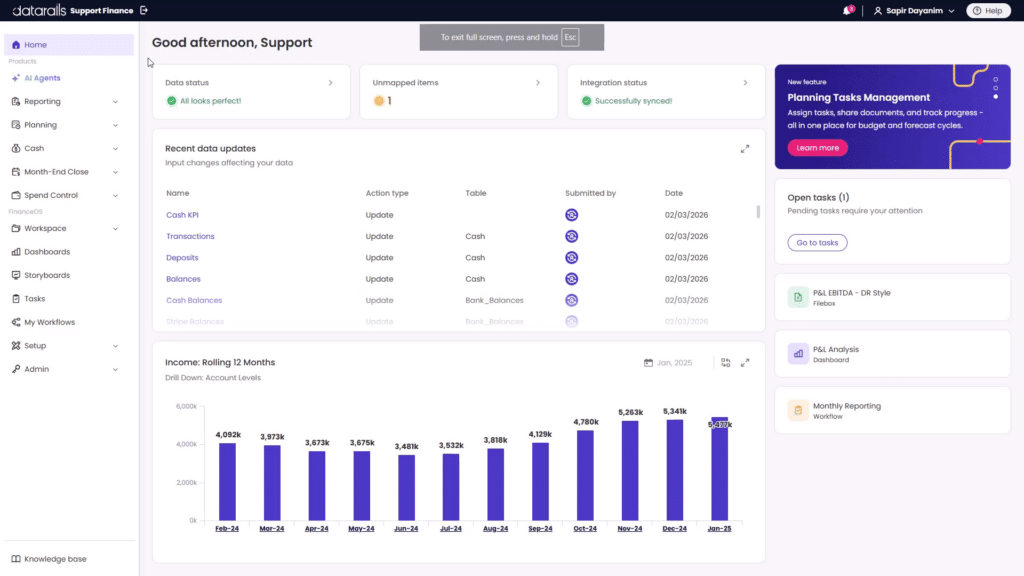
Datarails is built around one idea: your finance team should keep working in Excel. It sits in the same buying conversation as the best FP&A software category, though it is put together differently underneath.
FinanceOS by Datarails is the governed data layer that sits beneath the workbook, and the reporting, consolidation, and analysis described below all run on top of it.
The real value of workflows and templates shows up in recurring reporting. Datarails automatically updates report templates with the latest actuals, so your monthly board deck or variance analysis is refreshed instead of rebuilt every month.
The platform automates multi-entity consolidation across subsidiaries, currencies, and business units, and it centralizes formulas and reporting templates across the finance team. This way, the version everyone works from is the same one, version-controlled instead of scattered across local copies.
Datarails connects live to 600+ ERPs and other data sources, from NetSuite and SAP to Salesforce and BambooHR, through integrations that keep models current without a manual export-and-paste cycle.
Datarails AI adds three specialized agents on top of that foundation: a Reporting Agent that analyzes actuals and surfaces the drivers behind them, a Planning Agent for fast scenario and what-if analysis, and a Strategy Agent for bigger-picture trade-offs.
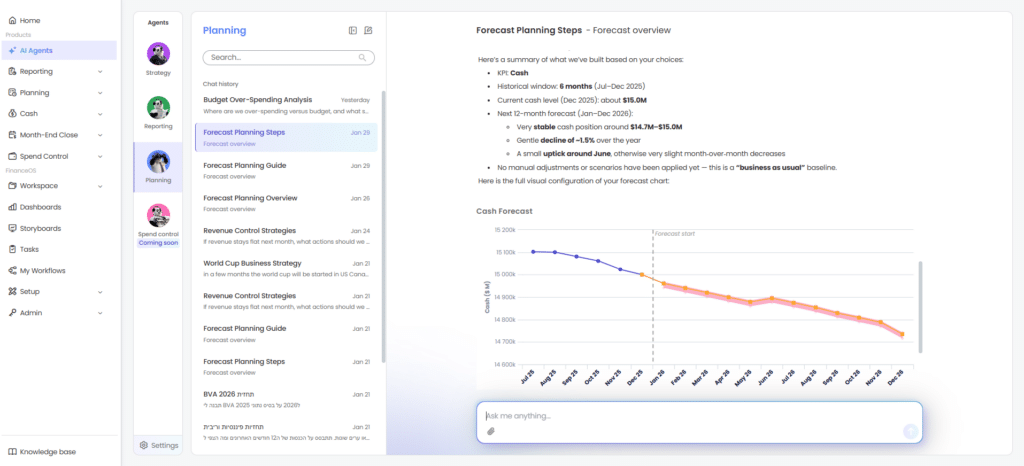
Insights and Storyboards turn that analysis into tailored summaries and board-ready narratives in a couple of clicks, cutting out hours of manual deck-building.
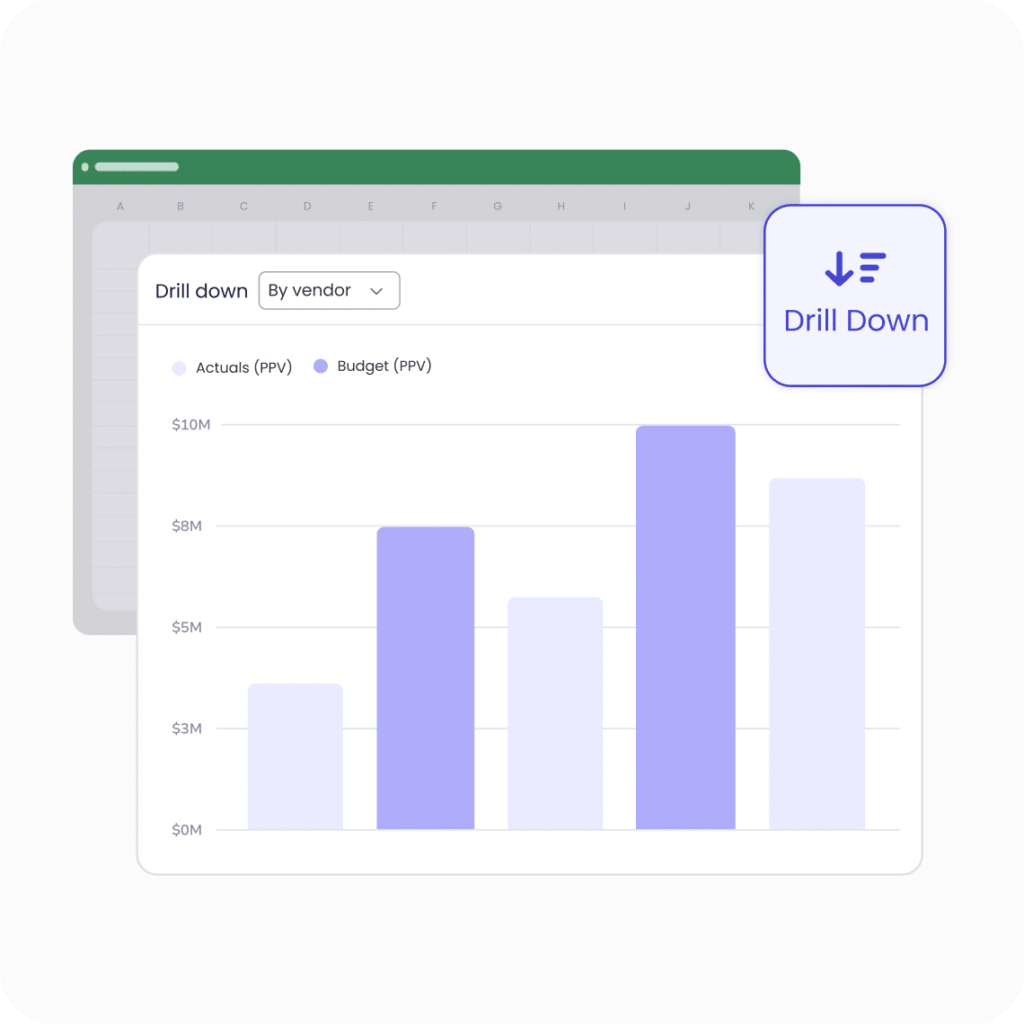
For teams asking whether an AI tool can build and maintain a recurring monthly reporting template instead of answering one-off questions, that is what this tier is for. Datarails FP&A covers the planning and forecasting side of the same setup, including AI for financial modeling in Excel.
How to Choose: An Excel AI Assistant or a Financial Workflow Platform
Match your actual problem to the list below:
- I just need help writing or debugging one formula: Copilot or Claude for Excel gets you there faster than searching help docs.
- I need to understand or audit a complex model someone else built: Claude for Excel’s cell-level citations make this its strongest use case.
- I rebuild the same report or template every month and want it to stop being manual: that’s a job for a financial workflow platform like Datarails.
- I need our numbers to stay in sync with our ERP without a manual export and import: same answer, since Tier 1 tools don’t hold a live connection to source systems.
Most finance teams end up running both tiers side by side: an assistant for daily one-off questions, and a platform underneath the recurring close, budget, and forecast process.
Our guide to AI in FP&A covers how that combination tends to play out.
What AI Tools for Excel Cannot Fix
Every tool in this guide reads the workbook in front of it. That is true of Copilot, of Claude for Excel, of ChatGPT, and of the formula generators. It is also what determines whether any of their answers are correct.[C1]
A workbook is usually the end of a long chain. Someone exported actuals from the ERP, pulled headcount from the HRIS, pasted a bookings figure from the CRM, and reconciled the three by hand. By the time an AI assistant opens the file, that work has already happened, and the assistant has no way to know whether it was done well. Ask it to explain a variance and it will explain the variance in the numbers it was given. If the actuals are four days old, or the revenue definition in the sheet is not the one sales is using, the answer comes back fast, well argued, and wrong.
This is the part tool comparisons tend to skip. AI does not audit its inputs. It works with what it finds, at speed, and presents the result with the same confidence either way. A stronger model produces a better-reasoned answer from the same flawed data.
So once you have picked an assistant, the more useful question is what the assistant is pointed at.
FinanceOS is Datarails’ answer to that question. It sits beneath the workbook rather than inside it: a governed data layer connecting 600+ ERPs, accounting systems, CRMs, and HRIS platforms, holding the company’s definitions for revenue, margin, headcount, and cost center in one place, and keeping a versioned record of what the numbers were and when they changed. Reporting templates built on top of it refresh from that layer instead of from an export, which is what turns finance AI workflows into something repeatable rather than something rebuilt.
The difference shows up most clearly when AI is involved. An assistant querying a governed layer inherits the governance: the same definitions every time, traceable to source, consistent with what the rest of the business sees. An assistant querying a spreadsheet inherits the spreadsheet.
Conclusion: Picking the Right AI Tools for Excel
It’s easy to group all AI tools for Excel together, but they aren’t trying to solve the same problem. Some help with whatever you’re working on right now. Others focus on making sure next month’s reporting process is already set up before you even begin.
Many finance teams end up using both because they complement each other. One helps with the unexpected work, while the other keeps recurring reporting running smoothly. If your team is still recreating reports every month, that’s likely the biggest opportunity to save time.
Ready to experience firsthand how Datarails automates recurring financial reporting in the Excel environment your team already uses?
AI Tools for Excel FAQs
Unlike general AI assistants, Datarails is designed around recurring FP&A work. It connects with more than 600 ERPs and data sources to automate consolidation, update reporting templates, and refresh financial models with live data. Copilot and Claude for Excel focus on helping with individual workbooks instead.
They divide into two tiers. General assistants like Microsoft Copilot, Claude for Excel, and ChatGPT answer one-off formula questions. Workflow platforms handle recurring reporting, consolidation, and templates. Datarails sits in that second tier but is built differently underneath: FinanceOS is a governed data layer beneath the workbook rather than a reporting tool above it.
Yes, when you need help with a specific task. Copilot can generate formulas, create pivot tables, handle more advanced reasoning through Claude models, which became the default for Copilot in Excel in commercial-cloud regions in May 2026. It’s designed for work in the moment, rather than managing live reporting templates used by an entire team.
Anthropic built Claude for Excel with spreadsheet analysis in mind, offering support for complicated formulas, multi-tab workbooks, and cell-level references. Microsoft’s Copilot is the default AI assistant for Excel users in Microsoft 365. Both operate workbook by workbook, though Claude generally shows more depth on complex finance models.
Think of an Excel AI assistant as a spreadsheet helper. It answers questions and completes tasks as they come up. An FP&A platform manages the reporting process itself, pulling in fresh data, updating shared templates, and reducing the work required every reporting cycle.
Some are, and some aren’t. Enterprise finance platforms are typically built with compliance standards and permission controls in mind. General-purpose AI tools differ from one provider to another, so it’s worth checking how your data is stored, whether it’s retained, and if it may be used to improve AI models.