
Click for Takeaways: Data Analysis Tools in Excel
- Spreadsheets still run finance: only 35% of finance professionals’ time is spent on high-value analysis.
- The real bottleneck is data, not Excel: 61% of FP&A professionals say unreliable data is their top challenge. Native Excel data analysis tools handle calculations well, but they can’t connect to live ERP data or consolidate across entities on their own.
- FP&A platforms close the gap: The right data analysis software for Excel connects your ERP, CRM, and HRIS into a single source of truth inside Excel, turning scattered exports into a live financial database teams can actually analyze.
- AI is reshaping finance workflows: 69% of CFOs say AI is integral to their finance transformation strategy, from AI tools for Excel data analysis to full-platform planning agents.
Your finance team already knows how to build models in Excel with working formulas and PivotTables. The problem is everything that happens before the analysis starts.
Things like pulling exports from the ERP, reconciling numbers across six departmental spreadsheets, and rebuilding the report that broke when someone saved over the master file. According to the 2024 FP&A Trends Survey, just 35% of FP&A professionals’ time goes to high-value work like generating insights. The rest is eaten up by data collection and validation.
The problem starts with the data, then shows up in Excel. And it’s exactly why “best data analysis tools in Excel?” has become one of the most searched questions in finance.
Most articles answering that question list 20 native functions and stop there. That’s useful if you’re learning XLOOKUP. It’s not enough if you’re trying to run financial data analysis in Excel across 12 entities with data sitting in four different systems.
This guide covers the full stack, including native Excel data analysis tools, AI tools for Excel data analysis, and the FP&A platforms that turn Excel into a live financial database.
What Excel Is Great At (And Where It Hits a Wall)
Excel is the most flexible financial modeling tool on the planet. It handles variance analysis, scenario planning, ad hoc reporting, and board deck builds better than most purpose-built software. Finance teams use it because it works exactly the way they think.
The wall shows up when the data behind those models has to come from somewhere else.
Most mid-market finance teams pull data from multiple ERPs, CRMs, HRIS platforms, billing systems, and bank feeds. Excel can calculate anything you put into it, but it can’t:
- Go get that data on its own
- Maintain a consistent live connection to systems like NetSuite or Salesforce without additional tooling
- Reconcile three different GL formats automatically
- Tell you whether the number in cell B14 is from last Tuesday’s export or last month’s
That’s the wall most teams hit because Excel is a calculation tool, not a database. And according to the AFP’s 2025 FP&A Benchmarking Survey, 61% of FP&A professionals say unreliable data is their top technology challenge, with 60% citing lack of accessible data right behind it.
The tools in this guide exist to close that gap, each at a different level of the finance tech stack.
Can You Transform Excel Into a Financial Database?
The solution category is FP&A platforms with Excel-native integration, and they already exist.
The core problem for most is that Excel is built for calculation, not data management. It can’t pull live data from your ERP, reconcile across entities automatically, or maintain a single version of truth across departments. That’s why finance teams spend days on data consolidation before any financial data analysis in Excel even begins.
FP&A platforms solve this by sitting behind Excel and connecting it to a live financial database. The capabilities that define this category include:
Live ERP Connection
Your Excel models pull directly from NetSuite, QuickBooks, Sage, or whichever system holds your actuals. No more manual exports.
Automatic Data Consolidation
Data from ERP, CRM, HRIS, billing, and banking systems flows into one governed layer without manual reconciliation.
Drill-Down From Summary to Transaction
Click a number in a summary report and trace it back to the individual journal entry or invoice that created it.
Multi-Entity Support
Consolidate financials across subsidiaries, departments, or business units inside Excel without rebuilding models for each one.
Audit-Ready Reporting
Every number carries a full data lineage, so your reports are traceable from output back to source.
Datarails is the leading example of this category. It connects 600+ data sources into a single platform, layers in AI-powered analysis, and keeps finance teams working in the Excel environment they already know. The FP&A Platforms section of this guide covers Datarails and five other financial database software Excel teams should evaluate.
15 Native Data Analysis Tools in Excel Every Finance Team Should Know
Before evaluating add-ins or platforms, it’s worth knowing what Excel can already do on its own. These 15 native Excel data analysis tools cover the core functions finance teams rely on daily, grouped by what they help you accomplish.
Formulas and Functions
- XLOOKUP (and VLOOKUP): The go-to for pulling values from reference tables. XLOOKUP replaces VLOOKUP with more flexibility: it searches in any direction, handles errors natively, and doesn’t break when you insert columns. Finance teams use it constantly for mapping account codes, pulling budget figures, and cross-referencing GL data.
- SUMIFS/COUNTIFS: Conditional aggregation across large datasets. Need total revenue for one region in one quarter? SUMIFS. Need a count of overdue invoices by vendor? COUNTIFS. These are the backbone of any financial data analysis in an Excel workflow.
- INDEX/MATCH: More powerful than VLOOKUP for complex lookups. INDEX/MATCH lets you search across rows and columns simultaneously, which is useful for pulling the right number from multi-dimensional budgeting & forecasting tables.
- IF/IFS/SWITCH: Conditional logic for classification and exception handling. Finance teams use these to flag variances above threshold, categorize transactions, or build tiered commission calculations.
Data Organization and Analysis
- PivotTables: The single most powerful native analysis tool in Excel. PivotTables let you summarize thousands of rows of transactional data by any dimension (period, department, entity, account) in seconds. If your team isn’t using PivotTables for monthly reporting, start here.
- PivotCharts: Visual layer on top of PivotTables. They update dynamically when you change filters or fields, making them useful for quick executive summaries and financial reporting software alternatives when full BI tools aren’t available.
- Data Tables (What-If Analysis): Built-in sensitivity analysis. Data Tables let you test how changes to one or two input variables (like growth rate or cost assumptions) affect an output. Useful for scenario planning without building separate model versions.
- Conditional Formatting: Visual flags on cell values. Finance teams use it to highlight negative variances, overdue balances, or thresholds that need attention. Simple, but it makes large datasets scannable at a glance.
Automation and Scripting
- Macros/VBA: Record or write scripts to automate repetitive tasks: reformatting reports, consolidating sheets, generating journal entries. VBA is powerful but fragile. Scripts break when file structures change, and they’re difficult to audit or hand off between team members.
- Power Query: Excel’s built-in ETL (extract, transform, load) engine. Power Query can pull data from CSVs, databases, web sources, and other Excel files, then clean and reshape it automatically. For moderate-complexity data merging, it’s the best native option. It won’t maintain a live ERP connection, but it handles recurring file-based imports well.
- Power Pivot: Adds a data modeling layer to Excel. Power Pivot lets you build relationships between multiple tables and write DAX formulas for calculations that standard Excel can’t handle, like distinct counts or time-intelligence functions. Think of it as a bridge between spreadsheets and a proper data model.
Visualization and Reporting
- Charts and Sparklines: Standard bar, line, and combo charts handle most financial reporting visuals. Sparklines (tiny in-cell charts) are useful for showing trends across periods in compact reports. Neither is fancy, but both get the job done for internal decks.
- Power BI (Desktop Connector): Not an Excel-native tool, but tightly integrated with it. Power BI connects to Excel workbooks and other data sources to build interactive dashboards. Finance teams that need more visual firepower than PivotCharts can offer often land here. Worth knowing, though it’s a separate product with its own learning curve.
Advanced Analysis
- Analyze Data (Ideas): Excel’s built-in AI feature. Select a data range and Analyze Data suggests PivotTables, charts, and trends it detects automatically. It’s limited, but it can surface patterns you might miss when scanning rows manually. No setup required.
- Solver: Optimization engine built into Excel. Solver finds the best value for a target cell (like minimum cost or maximum margin) by adjusting input variables within constraints you define. Finance teams use it for capital allocation, pricing optimization, and resource planning.
Each of these tools makes Excel more capable. But they don’t solve the financial database problem alone.
Yes, Power Query can merge files, but for most finance teams, it still falls short of a reliable, controlled ‘live ERP actuals into Excel models’ setup. Macros can automate formatting, but they can’t refresh actuals from NetSuite when the CFO asks for an updated margin view at 4 PM. PivotTables can summarize data brilliantly, but only if someone has already pulled, cleaned, and pasted that data into the right sheet.
For finance teams that need their Excel analytics tools connected to live data across systems, the next two categories go further.
8 AI Tools for Excel Data Analysis
AI-powered add-ins are the fastest-growing category of Excel analytics tools. According to the IBM Institute for Business Value, 69% of CFOs say AI is integral to their finance transformation strategy. These tools are a big reason why.
The pitch is simple: describe what you need in plain English, and the tool writes the formula, cleans the data, or generates the chart. For individual analyst productivity, they deliver. But it’s important to understand what they do and don’t solve before buying in.
Here are eight AI finance tools worth checking out:
1. Microsoft 365 Copilot
Microsoft 365 Copilot is the native AI tools for Excel data analysis option for Microsoft 365 users. It lives inside Excel, with no add-in required. Ask it to analyze a table, suggest formulas, generate charts, or summarize trends, and it works directly on your data without leaving the workbook.
- Best for: Enterprise teams already on Microsoft 365 who want AI assistance without switching tools.
- Pricing: From $18/user/month (business) to $30/user/month (enterprise), on top of a qualifying Microsoft 365 license.
2. ChatGPT (Advanced Data Analysis)
ChatGPT lets you upload Excel or CSV files and ask questions about them in natural language. It writes and runs Python in a sandboxed environment to produce charts, calculations, and analysis. The catch: files are session-based, so you start fresh each time.
- Best for: Quick, one-off analysis when you need an answer fast and don’t want to build a model.
- Pricing: Free tier available. Paid plans start at $20/month.
3. GPTExcel
GPTExcel turns natural language prompts into Excel formulas, SQL queries, and VBA scripts. It goes beyond basic formula generation into automation scripting, which makes it useful for finance teams that rely on macros but don’t want to write VBA from scratch.
- Best for: Analysts and finance professionals working with complex formulas and automation scripts.
- Pricing: Free trial available. Paid plans from $5/month.
4. FormulaBot
FormulaBot specializes in formula generation with a strong emphasis on explanation. Describe what you need, get the formula, and get a step-by-step breakdown of why it works. It’s the most educational tool in this category.
- Best for: Finance team members building their Excel skills while getting work done.
- Pricing: Free plan with limits. Paid plans available.
5. Numerous.ai
Numerous.ai adds AI functions directly into cells. Type =AI(“classify this transaction”) and it processes each row using a large language model. It’s particularly strong at bulk tasks like categorizing expenses, extracting data from text fields, and cleaning messy imports.
- Best for: Teams that need to process, classify, or clean large volumes of data inside the spreadsheet.
- Pricing: Plans from $10/month.
6. SheetAI
SheetAI brings similar in-cell AI functionality to both Excel and Google Sheets. It handles formula generation, text analysis, and data extraction through custom AI functions. The interface is straightforward, and setup is minimal.
- Best for: Small teams or solo analysts who want lightweight AI assistance without a large commitment.
- Pricing: Free tier available. Paid plans from $10/month.
7. Ajelix
Ajelix has grown from a formula generator into a broader analytics platform. Its standout feature is an AI-powered BI dashboard that turns spreadsheet data into interactive visualizations, making it one of the more capable Excel business intelligence tools in the add-in category.
- Best for: Analysts who want formula help and basic BI visualization from the same tool.
- Pricing: Free plan available. Paid plans for expanded features.
8. AI ExcelBot
AI ExcelBot is a straightforward formula generator that converts plain English into Excel functions. It’s simple, fast, and cheap. No data analysis, no visualization, just formula help.
- Best for: Casual Excel users and students who need quick formula answers.
- Pricing: Free version with limited queries. Paid plan from $2.99/month.
6 FP&A Platforms That Transform Excel Into a Financial Database
Most articles about data analysis tools in Excel stop at formulas and add-ins. This category goes further by connecting Excel to a live financial database, so every model and report runs on real-time data, not static exports.
These are the best data analysis tools Excel-based finance teams should evaluate when the bottleneck isn’t formulas but the data itself.
| Capability | Native Excel Tools | AI Add-Ins | FP&A Platforms (Datarails) |
| ERP Integration | No | No | Yes, 600+ integrations |
| Live Data Refresh | No (manual imports) | No | Yes, automatic |
| Multi-Entity Support | Manual only | No | Yes, automated consolidation |
| Drill-Down Analysis | Limited (PivotTables) | No | Yes, summary to transaction |
| Audit Trail | No native tracking | No | Yes, full data lineage |
| Excel-Native | Yes | Partial (add-ins) | Yes (Datarails Flex Add-in) |
| Time to Value | Immediate | Minutes to set up | 2 to 6 weeks |
1. Datarails
Datarails is the most Excel-native FP&A platform on the market. Where other tools ask finance teams to learn a new interface, Datarails works inside Excel through its Flex Add-in, keeping your existing models, templates, and workflows intact.
The platform connects 600+ data sources (ERP, CRM, HRIS, billing, banking) into a single governed data layer, automating the data consolidation work that eats up most of a finance team’s week. From there, teams can run financial analysis software-level reporting without leaving the spreadsheet.
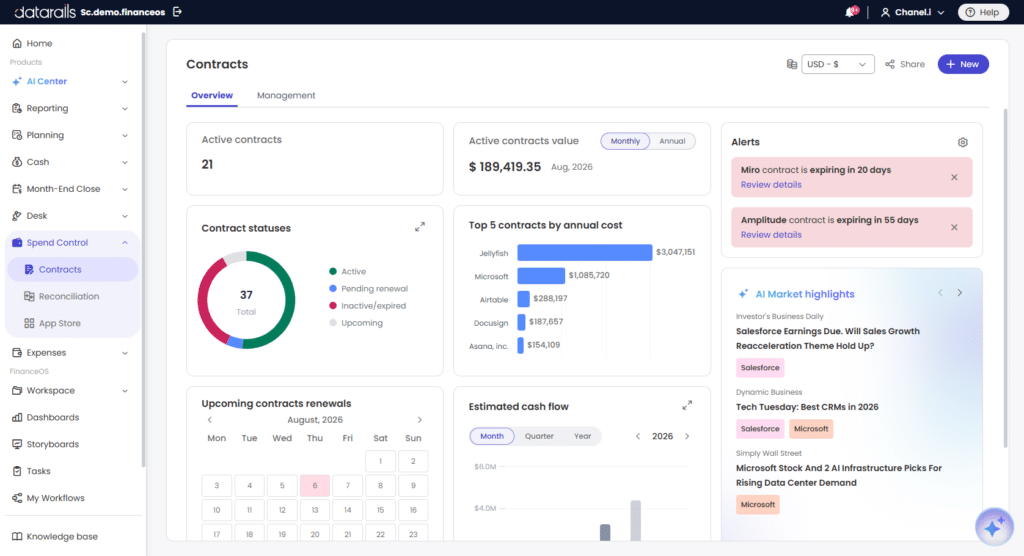
Core capabilities include live ERP connectivity that feeds actuals directly into Excel models, drill-down reporting that traces any summary number back to the source transaction, and AI-powered agents (Strategy, Planning, Reporting, and FP&A Genius) that surface anomalies and generate variance explanations from natural language prompts. The platform also automates month-end close workflows, including account reconciliation, delivers interactive financial dashboard software tied to live data, and includes spend control for real-time budget tracking. FinanceOS, Datarails’ governed data layer, also connects to external AI engines like Claude, ChatGPT, and Copilot.
- Best for: SMB and mid-market finance teams (50 to 1,000 employees) that run on Excel and need automated consolidation, live reporting, and AI-powered analysis without abandoning their existing workflows.
- Implementation: FP&A in 4 to 6 weeks. Financial statements in 2 weeks. Month-end close in 1 to 3 weeks.
- Pricing: Quote-based.
2. Cube

Cube is a spreadsheet-native FP&A platform that connects to both Excel and Google Sheets. It centralizes data and syncs it into your existing spreadsheets for reporting and planning. Cube is lightweight and fast to deploy, with a focus on simplicity over depth.
- Best for: Mid-market teams that want quick data syncing into spreadsheets without heavy configuration.
- Limitation: Less depth in consolidation and AI capabilities compared to platforms like Datarails. Can struggle at scale with complex multi-entity structures.
- Pricing: Quote-based.
3. Vena Solutions
Vena Solutions uses Excel as its front-end interface and layers a database, workflow engine, and pre-built FP&A templates underneath. It offers strong process controls and approval workflows, making it popular with teams that need structured planning cycles.
- Best for: Companies that want pre-built FP&A workflows and rigid process controls on top of Excel.
- Limitation: Implementation typically requires consultants to build and maintain financial models, which adds cost beyond the license fee.
- Pricing: Quote-based. Implementation consulting adds to total cost.
4. Workday Adaptive Planning
Workday Adaptive Planning is a cloud-based planning platform designed for enterprise-scale financial planning, workforce planning, and operational modeling. Unlike the other tools on this list, Adaptive moves planning out of Excel entirely and into a browser-based interface.
- Best for: Large enterprises already using Workday ERP or HCM that want a fully integrated planning environment.
- Limitation: Requires teams to leave Excel behind. Integration with non-Workday systems can be challenging. Higher price point and longer implementation timeline.
- Pricing: Quote-based. Typically higher than SMB-focused platforms.
5. Planful
Planful offers FP&A modules for budgeting, planning, reporting, and financial consolidation. It includes AI-powered features (Planful Predict) for signal detection and forecasting. Planful targets larger organizations with complex planning needs.
- Best for: Mid-market to enterprise companies undergoing growth or organizational change that need structured planning tools.
- Limitation: Often requires multi-year contracts. Setup fees through third-party implementers can be significant.
- Pricing: Quote-based. Multi-year contracts are common.
6. Anaplan
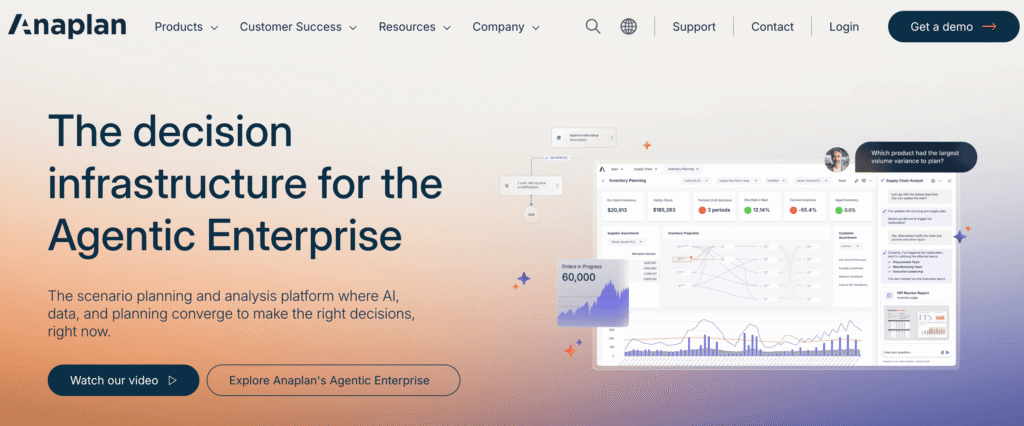
Anaplan is an enterprise data platform built for large-scale, multidimensional financial and operational modeling. Its modeling engine handles complex scenario planning across departments, geographies, and time horizons. Anaplan is the most powerful and most complex tool on this list.
- Best for: Large enterprises with dedicated IT resources that need cross-functional planning at scale.
- Limitation: Steep learning curve. Long implementation timelines (6 to 12+ months). Requires internal or external technical resources to build and maintain models. Significantly higher cost than SMB-focused platforms.
- Pricing: Quote-based. Significantly higher than mid-market alternatives.
How to Choose the Right Excel Data Analysis Tools for Your Finance Team
The best data analysis tools Excel teams should use depend on the question they’re trying to answer.
Use this decision framework to determine what your team actually needs:
“I need to write better formulas and automate repetitive tasks.”
Start with Microsoft Copilot, GPTExcel, or FormulaBot for formula generation. For recurring automation, Macros/VBA still works if you have someone who can maintain the scripts. These are the simplest data analysis tools in Excel to adopt and the fastest to show results.
“I need better visualizations from my existing Excel data.”
PivotCharts and Conditional Formatting handle basic reporting visuals. For interactive dashboards, Power BI connects directly to Excel workbooks and offers significantly more visual depth. No new data infrastructure required.
“I need to clean and merge data from multiple sources without manual exports.”
Power Query is the right native tool for moderate-complexity merges (combining CSVs, reshaping files, recurring imports). For enterprise-scale consolidation across multiple ERPs, entities, or geographies, you’ll need an FP&A platform that handles the financial close software side as well.
“I need my Excel models to update automatically when actuals come in from our ERP.”
This requires an FP&A platform with live ERP integration. Datarails, Cube, and Vena all connect to major ERPs and push actuals into Excel. Datarails is the most Excel-native option. Cube is the lightest to deploy.
“I need a live financial database behind my Excel models with drill-down to transaction level.”
Datarails is the strongest fit here. Its drill-down capability lets you click a summary number and trace it to the source journal entry or invoice, all inside Excel. Pair it with a solid month-end close checklist, and the close process gets significantly faster.
“I need enterprise financial planning with Excel as the primary interface.”
For enterprise-scale planning across departments and geographies, evaluate Datarails, Workday Adaptive Planning, and Anaplan. Datarails keeps Excel at the center, Adaptive moves planning to a browser, and Anaplan offers the most modeling power but requires the most resources to implement and maintain.
Stop Prepping Data and Start Analyzing It
Every finance team has the same 40 hours in a week. The question is how many of those hours go to pulling exports, reconciling spreadsheets, and rebuilding reports versus actually analyzing what the numbers mean.
Native Excel data analysis tools handle the calculation layer well. AI tools for Excel data analysis speed up individual tasks like formula writing and data cleaning. But neither category solves the core problem — your data is scattered across systems, and Excel was never designed to bring it together.
FP&A platforms solve these problems by connecting your ERP, CRM, HRIS, and banking data into a single source of truth behind Excel, so your team spends less time assembling data and more time making sense of it. That’s the shift from data collection to financial data analysis in Excel that actually drives decisions.
Datarails does this without asking your team to leave the spreadsheet environment they already know, automating data consolidation from 600+ sources, delivering drill-down reporting inside Excel, and layering in AI-powered analysis, all within the workflows your finance team already uses.
Book a demo today to see how Datarails turns Excel into a live financial database designed to support the workflows you already use.
Data Analysis Tools in Excel FAQs
It depends on where your bottleneck is. For formula work and data organization, native Excel data analysis tools like PivotTables, XLOOKUP, SUMIFS, and Power Query are the foundation. For productivity boosts, AI tools for Excel data analysis like Microsoft Copilot, FormulaBot, and GPTExcel help analysts work faster.
For teams that need live data from ERP, CRM, and HRIS systems inside Excel, FP&A platforms like Datarails, Cube, and Vena solve the data consolidation problem that native tools and add-ins can’t.
Yes. FP&A platforms with Excel-native integration turn Excel from a standalone calculation tool into a front end for a live financial database. Datarails is the leading example. It connects 600+ data sources into a single governed data layer, enables drill-down from summary to transaction, supports multi-entity consolidation, and delivers audit-ready reporting, all inside Excel.
Native Excel data analysis tools (PivotTables, Power Query, SUMIFS) handle calculation, formatting, and basic data transformation within a single workbook. AI add-ins (Copilot, FormulaBot, Numerous.ai) use natural language to help write formulas, clean data, and generate charts faster. FP&A platforms (Datarails, Cube, Vena, Anaplan) connect Excel to live data sources across the organization and automate consolidation, reporting, and planning workflows. Each category solves a different layer of the problem.
Copilot is the most integrated AI tools for Excel data analysis option for teams already on Microsoft 365. It generates formulas, builds PivotTables, creates charts, and summarizes trends from natural language prompts, all inside the workbook. “It’s strong for individual analyst productivity. The limitation is that Copilot works on data already in your spreadsheet; system-to-system consolidation and governed ‘single source of truth’ still require additional tooling. For that, you need an FP&A platform.
Native Excel analytics tools like PivotTables and Power Pivot can handle multi-entity summarization if the data is already in the workbook. But getting that data there is the problem.
For finance teams consolidating across multiple subsidiaries, departments, or business units, an FP&A platform with automated multi-entity consolidation is the practical answer. Datarails handles this inside Excel with 600+ integrations. Anaplan and Workday Adaptive Planning handle it at enterprise scale but outside of Excel.
Most FP&A platforms connect to Excel through add-ins or bidirectional integrations. Datarails uses its Flex Add-in to embed live data, reporting, and dashboards directly inside Excel workbooks. Cube syncs data into Excel and Google Sheets through its own connector. Vena uses Excel as its primary interface with a database and workflow layer underneath.
The key difference from native data analysis tools in Excel is that these platforms pull live data from ERP, CRM, and HRIS systems automatically, so models stay current without manual exports.
For in-Excel AI assistance, Microsoft Copilot is the most seamless option since it works natively inside the workbook. For one-off analysis on uploaded files, ChatGPT’s Advanced Data Analysis is fast and flexible. For formula generation specifically, FormulaBot and GPTExcel are strong.
For finance teams that need AI applied to live, consolidated financial data (not just a single spreadsheet), Datarails’ AI agents offer a deeper solution: they work across the full data analysis software for Excel stack, surfacing anomalies and generating variance explanations from governed, multi-source data.
Financial data analysis in Excel has stricter requirements than general data work. Every number needs to be auditable and traceable to a source. Reports must support multi-entity consolidation, intercompany eliminations, and period-over-period comparisons.
Data comes from regulated systems (ERP, GL, banking) with strict formatting and governance requirements. General data analysis often works with a single dataset in isolation. Finance teams work across multiple systems, time periods, and reporting structures simultaneously, which is why Excel database tools for finance and FP&A platforms exist as a category that general-purpose analytics tools don’t address.